Jira Software Status
Official status feed for Jira Software cloud services.
Live Domain Check
Check if Jira is down right now (jira.com). Run a live multi-region check to see whether Jira is offline for everyone or just you.
Get official Jira outage status updates, support links, and targeted troubleshooting steps in one page.
Checking reachability from multiple regions.
Jira outages often appear as board timeout, issue transition errors, or delayed notifications. A quick global check helps you verify incident scope before changing permissions or automation rules.
For Jira, incident signals are often feature-specific: Initial page load succeeds, then board and sprint updates errors appear. Issue view rendering and workflow transition actions drift out of sync under load. If this matches what you see on jira.com, it usually points to partial degradation instead of a full outage, so confirm with official status updates and a second-network retest.
Use official sources first, then social/community signals to estimate incident scope and speed of recovery.
Official status feed for Jira Software cloud services.
Official Jira cloud troubleshooting and incident escalation.
Community signal for real-world Jira impact and timing.
Real-time posts and official updates related to Jira incidents.
Official teams often post outage status updates and recovery progress through these social channels.
Recognizing these patterns helps you avoid false assumptions and escalate with better evidence.
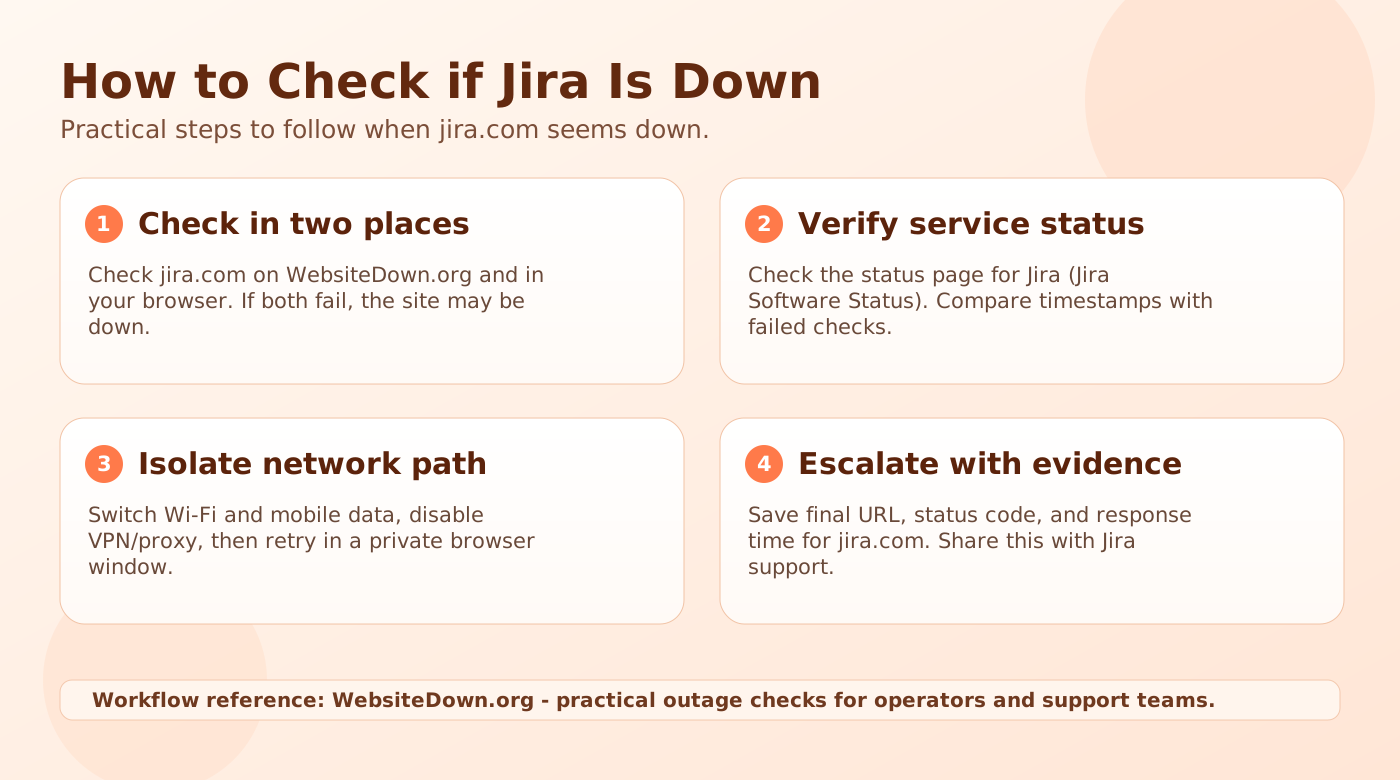
Practical steps to follow when jira.com seems down. Use this checklist to confirm whether Jira is down for everyone or only for you.
Run jira.com in WebsiteDown.org first, then open jira.com in your own browser. If results disagree, the issue is often local rather than global.
Check the official Jira service status page and compare timestamps with your failed checks.
Test related hosts such as www.jira.com, support.atlassian.com. If they work while jira.com fails, this points to a partial endpoint issue.
Capture final URL, status code, and response time for jira.com, then share those details with Jira support for faster triage and recovery.
Use these local troubleshooting steps after the down-check workflow when Jira seems broken only for you. This section focuses on app, browser, account, and network fixes.
Open jira.com in your current browser, then test in a private window or second browser. If only one session fails, the issue is usually local cache, cookie, or extension state.
Sign out and sign back in one time, then retry the failing action on jira.com. Avoid repeated password or security resets until you confirm this is not a broader Jira issue.
Temporarily disable VPN, proxy, private DNS, and filtering extensions. Then switch between Wi-Fi and mobile data to isolate route-level differences.
Save timestamp, device, network type, exact error, final URL, and status code. Use the check workflow above before contacting Jira support.
Run the automatic multi-region check on this page for jira.com. If most regions fail at the same time, Jira is likely experiencing a broader outage.
If only one or two regions fail, the issue is usually local to your route, resolver, device state, or account session. Recheck after 2 to 5 minutes and compare Wi-Fi with mobile data.
Use this order so you get reliable signal quickly:
Official dashboards are the source of record, but social channels can surface impact faster in the first minutes of an incident.
That usually means a route-specific or client-specific issue instead of full provider downtime. Common reasons:
Try a private window, switch networks, and compare with this page's regional result before making major local changes.
Use this quick triage sequence:
This keeps your troubleshooting efficient and avoids unnecessary account resets during provider-side incidents.